
Table of Contents
Toggle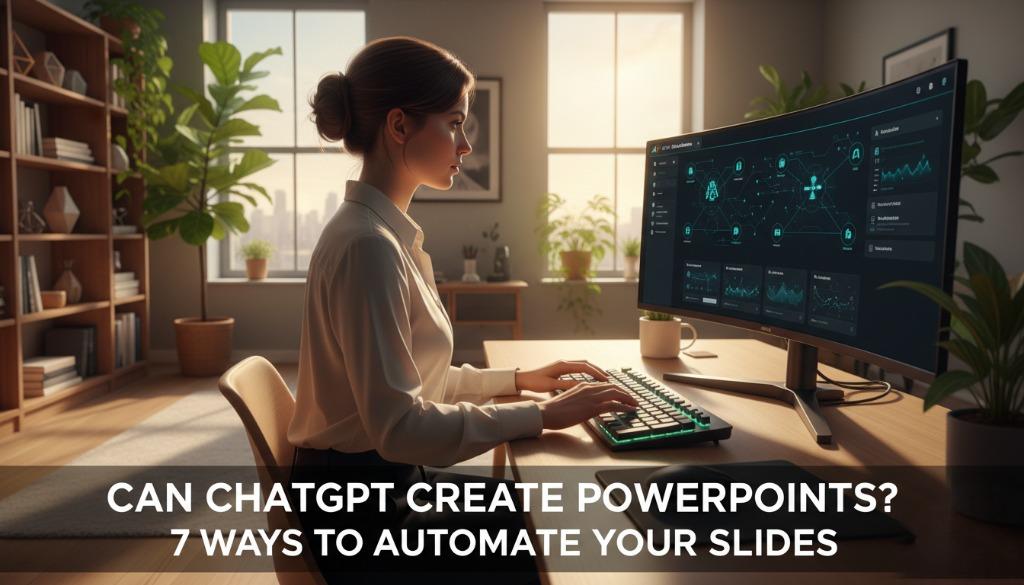
Can ChatGPT create PowerPoints directly with a single click of a button? This is one of the most common questions professionals and students ask as they look to shave hours off their presentation prep time. The short answer is no—ChatGPT cannot currently export a finished .pptx file directly to your desktop. However, the long answer is far more exciting: while it can’t “draw” the slides for you, it can handle about 80% of the heavy lifting involved in the presentation process.
If you have ever stared at a blank white slide for an hour, you know that the hardest part of any presentation is the structural foundation. ChatGPT excels at this. By acting as a specialized architect, the AI can draft your narrative, organize your data, and even write the hidden code that generates a presentation automatically.
Understanding the Capabilities: What ChatGPT Actually Does
To use ChatGPT effectively for presentations, you must first understand its boundaries. It is a Large Language Model (LLM), meaning its primary strength is processing and generating text. It does not have a “Save As” function for Microsoft Office formats in the traditional sense.
The Brain, Not the Hand
Think of ChatGPT as a world-class researcher and scriptwriter. It can take a 50-page PDF and condense it into ten cohesive slides. It can suggest visual metaphors for your data and write speaker notes that sound natural. What it cannot do is choose the perfect hex code for your brand’s blue or position an image perfectly in the bottom-right corner.
The Role of Python and VBA
For users who want a bit more automation, ChatGPT can write “scripts.” By using VBA (Visual Basic for Applications) or Python code, ChatGPT can provide you with a snippet of text that you paste into PowerPoint. When you run that script, the software builds the slides based on the AI’s instructions. This is the closest you can get to “instant” creation without using third-party paid plugins.
The Three Primary Workflows for AI Presentations
When people ask, “can ChatGPT create PowerPoints,” they are usually looking for a workflow that saves time. Here are the three most effective ways to bridge the gap between AI text and PowerPoint slides.
1. The Structured Outline Method
This is the most “human-in-the-loop” method. You ask ChatGPT to act as a subject matter expert and outline your presentation.
-
Step A: Provide your source material or topic.
-
Step B: Ask for a 10-slide structure, including Title, Key Points, and Visual Suggestions.
-
Step C: Manually copy this content into a PowerPoint template.
2. The VBA Automation Trick
This is a favorite for non-technical users who want to feel like pros. You ask ChatGPT: “Write the VBA code to create a PowerPoint presentation about [Topic] with 8 slides.”
-
The Process: ChatGPT generates a block of code. You open PowerPoint, press
Alt + F11, insert a module, and hit “Run.” -
The Result: Your slides appear instantly with titles and bullet points already populated.
3. The Markdown to Designer Flow
Microsoft PowerPoint now has an “AI Designer” feature. You can use ChatGPT to generate a clean, hierarchical outline in Markdown format. When you paste this into the web version of PowerPoint, the “Designer” tool can often suggest high-end layouts and imagery to match the text ChatGPT wrote.
Practical Use Cases for Students and Professionals
The utility of ChatGPT changes depending on who is using it. Because the tool is so flexible, it adapts to different professional needs seamlessly.
For Office Professionals
In a corporate setting, presentations are often about data and updates. ChatGPT can take raw meeting notes and transform them into a “Executive Summary” slide deck. It ensures the tone is professional and the logic flows from the problem statement to the solution.
For Teachers and Educators
Teachers can use ChatGPT to break down complex subjects into age-appropriate slides. If a teacher needs to explain photosynthesis to 5th graders, ChatGPT can suggest analogies—like a plant “cooking” its own food—and structure the slides to maintain student engagement.
For Marketing and Sales
Marketers use ChatGPT to brainstorm “hooks” for their presentations. Instead of generic titles, the AI can generate high-energy headlines that grab a client’s attention, while ensuring the value proposition is repeated across the deck.
Navigating the Limitations of AI Slide Design
It is easy to get swept up in the hype of AI, but ChatGPT has distinct limitations that can lead to embarrassing mistakes if ignored.
-
No Real-Time Design Sensitivity: ChatGPT doesn’t know if a slide looks “crowded.” It might give you 15 bullet points for one slide, which is a cardinal sin of presentation design.
-
Data Hallucinations: If you ask ChatGPT to provide statistics for your PowerPoint, it might occasionally “hallucinate” or invent a plausible-sounding number. Always verify data before presenting it to an audience.
-
Visual Assets: While ChatGPT can describe an image you should use (e.g., “An image of a diverse team collaborating over a laptop”), it cannot browse the web to find that specific creative-commons image and insert it for you.
Traditional Methods vs. ChatGPT Workflows
| Feature | Traditional Creation | ChatGPT-Assisted |
| Research Time | High (Hours of googling) | Low (Minutes of prompting) |
| Structure | Manual brainstorming | Instant logical hierarchy |
| Design Control | Total control | Depends on the template used |
| Accuracy | High (User-verified) | Medium (Requires fact-checking) |
| Ease of Use | Tedious | Fast but requires “prompting” skill |
The biggest difference lies in the starting point. Traditional methods start with a “cold start” problem. ChatGPT-assisted methods start with a “refinement” problem. It is almost always faster to edit a draft than to write one from scratch.
When to Rely on AI (and When to Step In)
Knowing when to use ChatGPT is just as important as knowing how to use it.
Use ChatGPT when:
-
You have a mountain of information and need to find the “narrative thread.”
-
You need to simplify technical jargon for a general audience.
-
You are stuck on how to transition from Slide 4 to Slide 5.
Step in manually when:
-
The Branding Matters: If this is a high-stakes pitch to a VC or a keynote speech, the “human touch” in design and storytelling is irreplaceable.
-
Emotional Nuance is Required: AI is great at facts, but it struggles with humor, empathy, and reading the “vibe” of a specific room.
-
Final Proofing: Never let an AI-generated script run without a thorough read-through.
Final Verdict on AI-Generated Presentations
So, can ChatGPT create PowerPoints? It acts as the ultimate ghostwriter and assistant, but it isn’t the designer. By using ChatGPT to handle the brainstorming, outlining, and even the basic coding of a deck, you can transform a three-hour task into a thirty-minute task.
The future of presentations isn’t about choosing between human or AI; it’s about the “Cyborg” approach—using the speed of AI to handle the grunt work so you can spend your time on what really matters: delivery, connection, and impact.